On this page ▾
- What Is a WhatsApp Message Template?
- When Do You Need a Template?
- The Three Template Categories
- What Is Inside a Template?
- How Does Template Approval Work?
- Why Templates Get Rejected, and How to Avoid It
- How to Write Templates That Work
- Template Examples You Can Adapt
- Keeping Template Quality High
- Templates and Chatbots
- Templates and Messaging Limits
- How Bigool Connect Helps With Templates
- Frequently Asked Questions
- More Guides for Odisha Businesses
If you want to send WhatsApp messages to customers at scale, you will meet message templates very quickly. They look like a small detail, but they decide what you can send, when you can send it, how much it costs, and whether your messages get approved at all.
This guide explains what WhatsApp message templates are, the three categories, how approval works, how to write templates that get approved, and gives ready-to-adapt examples. It builds on our complete guide to WhatsApp automation and our explainer on the WhatsApp Business API.
What Is a WhatsApp Message Template?
A WhatsApp message template is a pre-written message format, with placeholders for personal details, that Meta reviews and approves before a business can send it. Templates are required to start a conversation or to write after the 24-hour customer service window has closed.
Think of a template as a form letter with blanks. You fix the wording once, Meta approves it, and then each message fills in the blanks: the customer's name, an appointment time, an order number.
Templates exist for the customer's protection. They stop businesses from sending anything they like to anyone, and they let Meta rate each message type for quality.
When Do You Need a Template?
| Situation | Template needed? |
|---|---|
| A customer messages you, and you reply within 24 hours | No. Reply freely. |
| You start the conversation (reminder, offer, notification) | Yes |
| The customer's last message was more than 24 hours ago | Yes |
| A customer taps through from a WhatsApp ad or Facebook Page button | A free 72-hour window opens for replies |
This is called the customer service window. It resets each time the customer writes to you. A well-built automation uses templates to start or restart conversations and free-form replies once the customer answers.
The Three Template Categories
Every template must be one of three categories, and the choice affects the rules it must follow.
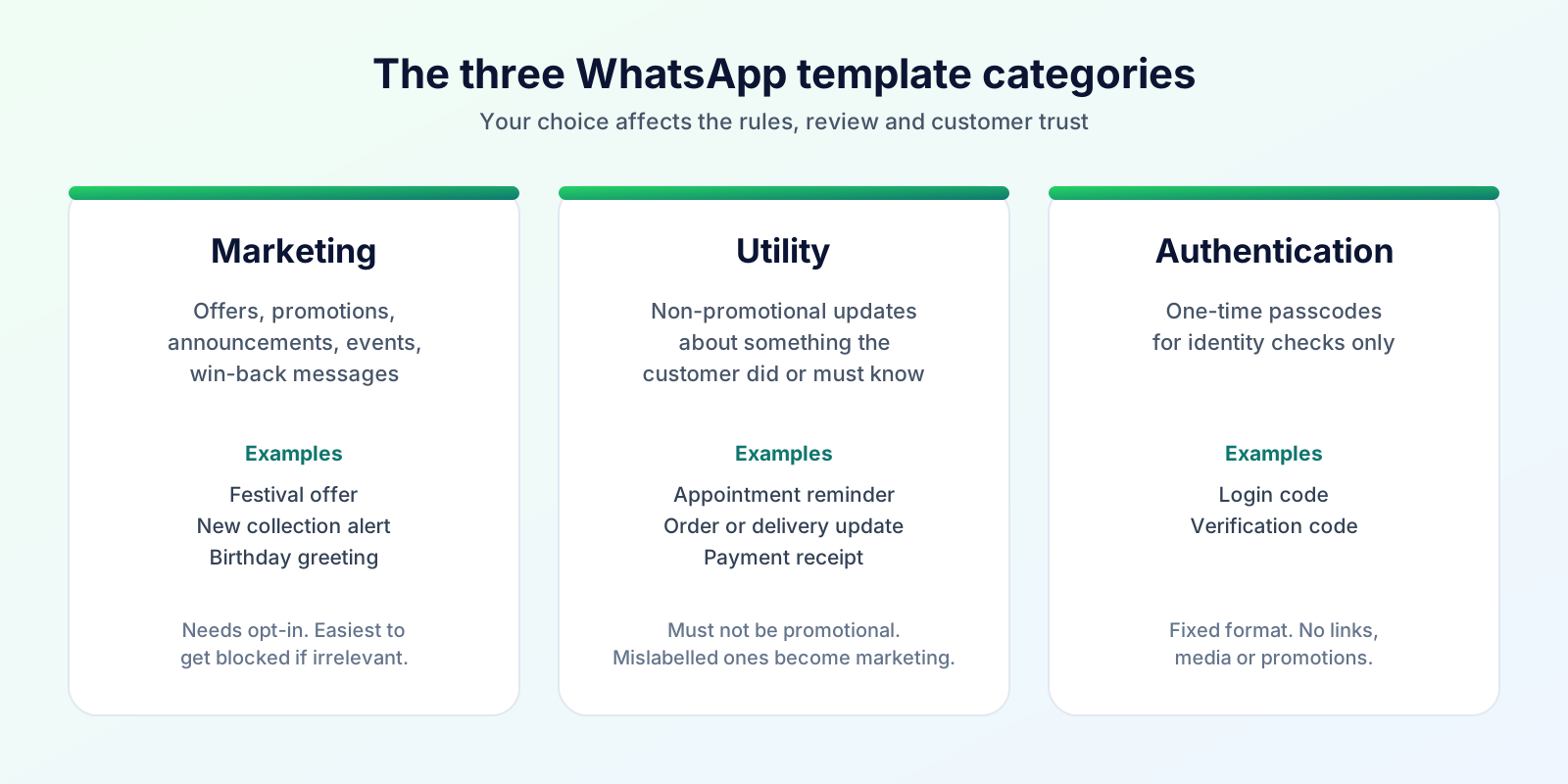
1. Marketing. The broadest category. It covers offers, promotions, product suggestions, announcements, event invitations, win-back messages and anything meant to build the relationship or drive a sale. If a message mixes information with a promotion, it is marketing.
2. Utility. For non-promotional messages that follow up on something the customer did or that they need to know. Meta's definition is strict: the message must be non-promotional and either specific to the customer (an order, an appointment, an account) or genuinely essential (a safety alert or service outage). Examples: order confirmations, delivery updates, appointment reminders, payment receipts.
3. Authentication. Only for sending one-time passcodes to verify identity. These templates follow a fixed format and cannot carry promotional content, links or media.
Why category matters
- Review. Meta checks that your declared category matches the content. A "utility" template that contains promotional content is converted to marketing, and repeated misuse can lead to warnings, lower sending limits or restrictions.
- Trust. Customers are most tolerant of utility messages. A marketing message sent to someone who did not expect it is the quickest way to get blocked.
Rule of thumb: if you would be happy for the customer to ignore it, it is probably marketing. If they would be annoyed not to get it, it is probably utility.
What Is Inside a Template?
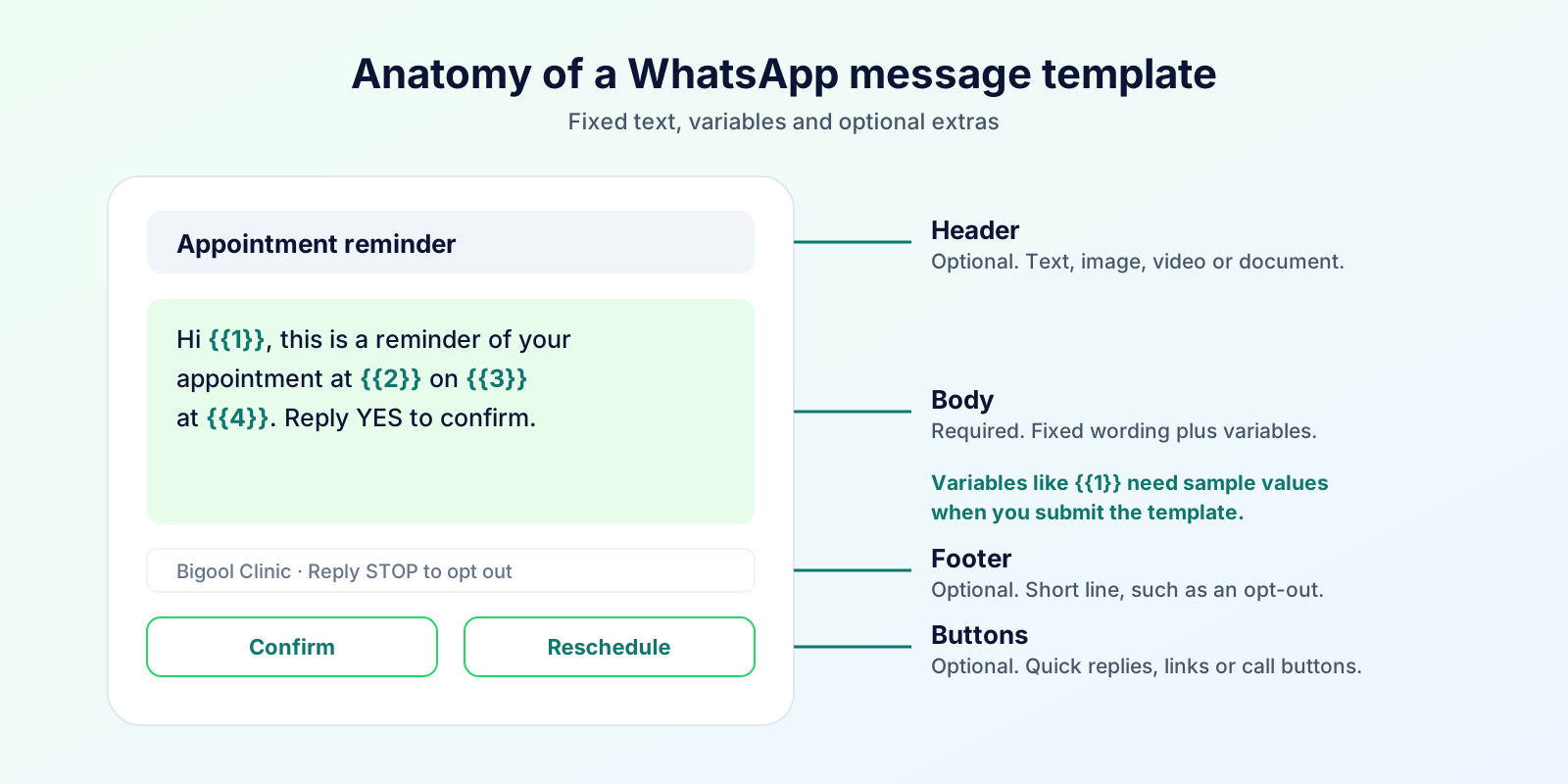
- Header (optional): a short title, or an image, video or document.
- Body (required): the main text, with variables where details change.
- Footer (optional): a short line, often used for the business name or an opt-out reminder.
- Buttons (optional): quick replies or call-to-action buttons such as a link or a phone number. Availability depends on the category and on your provider's software.
Variables are the blanks. They are written as {{1}}, {{2}} (positional) or as named parameters, and each needs a realistic sample value when you submit the template so the reviewer can see how the final message will read. Check the exact limits for each component in Meta's template documentation, since they change.
How Does Template Approval Work?
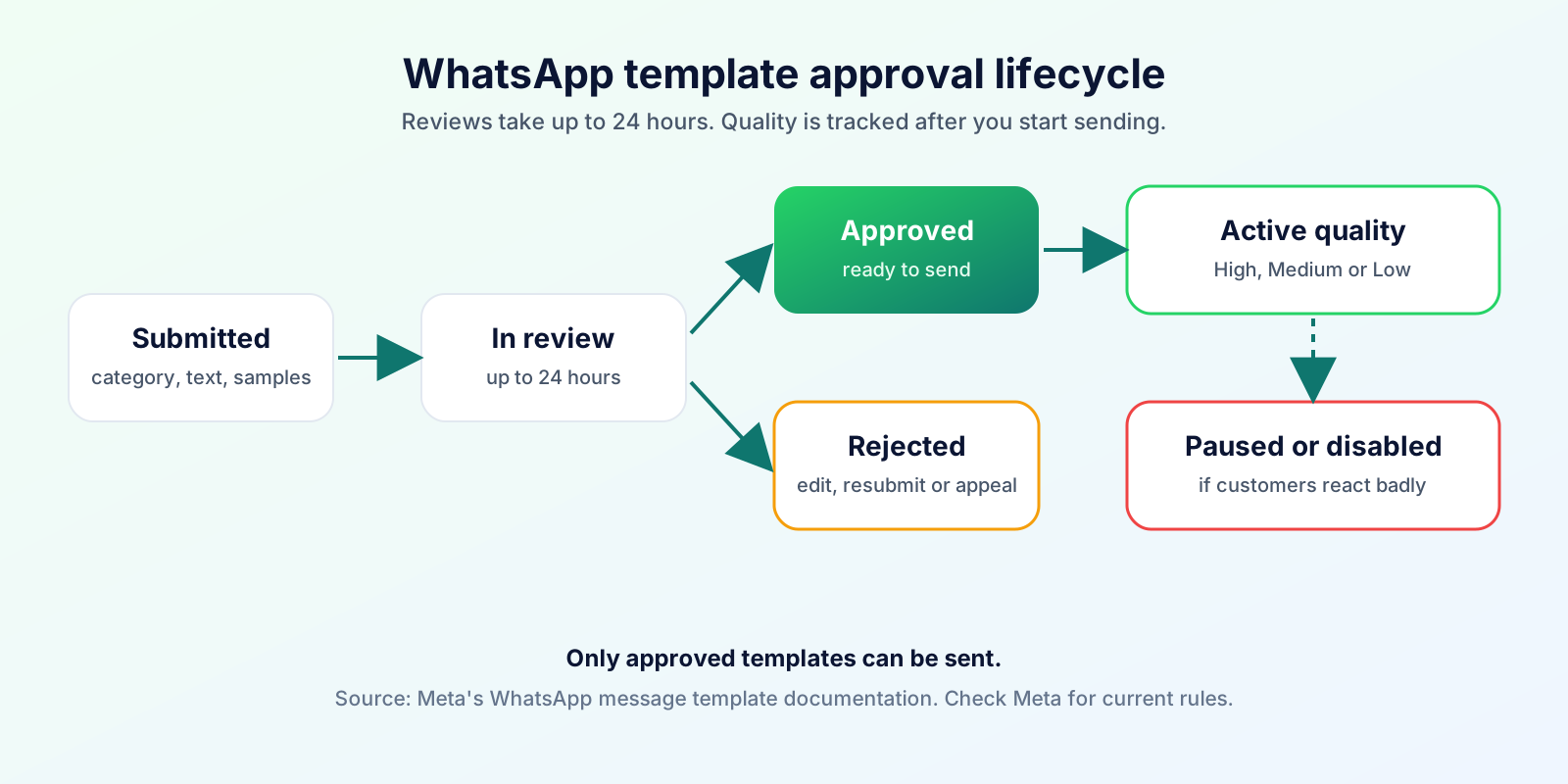
- You submit the template with its category, language, text and sample values.
- Meta reviews it. Meta's documentation says reviews take up to 24 hours, and many finish much faster.
- It is approved or rejected. Only approved templates can be sent. If rejected, you can edit and resubmit, or appeal.
- Quality is tracked after sending. Ratings reflect customer feedback and engagement. Low quality can lead to a template being paused or disabled.
- Housekeeping. Unused templates can eventually be archived automatically.
Your provider's software should show these statuses so you are not guessing why a campaign did not go out.
Why Templates Get Rejected, and How to Avoid It
| Common reason | How to fix it |
|---|---|
| Wrong category (promotion inside a utility template) | Keep utility templates purely informational, or submit as marketing |
| Vague or misleading wording | Say clearly why the customer is receiving the message |
| Variables that make the message unclear | Keep most of the text fixed; use variables for names, dates and amounts only |
| Missing or unrealistic sample values | Provide real-looking examples for every variable |
| Requests for sensitive information | Never ask for passwords, card numbers or similar |
| Content that breaks Meta's policy | Review the Business Messaging Policy for restricted content |
| Spelling or formatting problems | Proofread, and keep formatting simple |
If you believe a decision is wrong, you can appeal. Meta allows category reviews through Business Support within a limited time after a decision.
How to Write Templates That Work
- Lead with the point. Say who you are and why you are writing in the first line.
- Use the customer's name and one specific detail such as the date, time or order.
- One message, one purpose. Do not combine a reminder with a sales pitch.
- Keep it short. Customers read WhatsApp on the move.
- Make the next step obvious. A reply, a call or a link.
- Give an easy way out for marketing messages, for example "Reply STOP to opt out".
- Match the language to the customer. Submit separate templates for each language you use.
Template Examples You Can Adapt
These are starting points. Adjust the wording to your business and submit them in the correct category.
Appointment reminder (utility)
Hi {{1}}, this is a reminder of your appointment at {{2}} on {{3}} at {{4}}. Reply YES to confirm or call us to reschedule.
Order update (utility)
Hi {{1}}, your order {{2}} is ready for pickup at {{3}}. Please carry this message when you visit.
Fee or payment reminder (utility)
Hi {{1}}, a fee of {{2}} is due on {{3}}. Please contact the office if you have any questions.
Admission follow-up (utility)
Hi {{1}}, thank you for your enquiry about {{2}}. Our counsellor will call you on {{3}}. Reply here if another time suits you better.
Membership renewal (utility or marketing, depending on content)
Hi {{1}}, your membership expires on {{2}}. Renew by {{3}} to keep your plan active.
If a renewal message includes a discount, it is marketing.
Festival offer (marketing)
Hi {{1}}, our {{2}} offer is live until {{3}}: {{4}}. Reply STOP to opt out.
Feedback request (utility)
Hi {{1}}, thank you for visiting {{2}}. How was your experience? Reply with a number from 1 (poor) to 5 (excellent).
Birthday greeting (marketing)
Happy birthday, {{1}}! Everyone at {{2}} wishes you a wonderful year. Reply STOP to opt out.
Keeping Template Quality High
- Send only to people who opted in. This is the biggest quality factor.
- Target carefully. Use tags or segments so a message goes to the people it is relevant to.
- Do not over-send. Marketing templates are subject to per-customer limits, and frequent messages drive blocks.
- Watch the quality rating and pause templates that perform poorly.
- Keep records of how each customer opted in.
Templates and Chatbots
Chatbots and AI agents reply freely inside the 24-hour window, but they still need templates to start conversations or to follow up afterwards. See our WhatsApp chatbot and AI agent guide for how the two fit together.
Templates and Messaging Limits
Template quality influences how fast your sending limit grows. New accounts start at 250 unique customers per 24 hours outside the customer service window, and high-quality sending, along with business verification, helps you move up. See our WhatsApp Business API guide for the full tier table.
How Bigool Connect Helps With Templates
Bigool Connect lets you work with WhatsApp message templates inside the same workspace you use for contacts, campaigns, automations and your inbox. You can choose approved templates for campaigns and automated messages such as date-based reminders, send again to contacts whose message failed, was delivered or was read, and move to free-form replies once a customer responds. See the pricing page for plans and charges.
Explore Bigool Connect and see how templates, campaigns and automation can work together for your business. → Book a free demo
Frequently Asked Questions
What is a WhatsApp message template? A WhatsApp message template is a pre-written message, with placeholders for details like name or date, that Meta reviews and approves before a business can send it. Templates are required when a business starts a conversation or writes after the 24-hour customer service window has closed.
Why do WhatsApp message templates need approval? Approval protects customers from spam and misleading messages. Meta reviews each template for category, clarity and policy compliance, and only approved templates can be sent.
How long does WhatsApp template approval take? Meta's documentation says reviews take up to 24 hours, and many are completed much faster. Plan ahead for campaigns, and avoid editing a template at the last minute because edits are reviewed again.
What are the WhatsApp template categories? There are three: marketing (offers, promotions and relationship building), utility (non-promotional updates about something the customer did, such as an order or appointment) and authentication (one-time passcodes). The category affects the rules a template must follow.
Why was my WhatsApp template rejected? Common reasons are the wrong category, promotional content in a utility template, vague or misleading wording, variables used incorrectly or without good examples, requests for sensitive data and content that breaks the Business Messaging Policy. Fix the issue and resubmit, or appeal if you believe the decision was wrong.
Can I send a WhatsApp message without a template? Yes, but only inside the 24-hour customer service window, which opens when the customer messages you. Outside that window, or when you start the conversation, you must use an approved template.
How many variables can a WhatsApp template have? Templates support variables written as {{1}}, {{2}} or as named parameters, and each needs a sample value when you create the template. Keep variables for genuinely personal details and avoid templates that are mostly variables with little fixed text, which can be rejected.
Can I edit an approved WhatsApp template? Yes, but an edit sends the template back for review, and limits apply to how often and how much you can change. For major changes, creating a new template is often cleaner.
Are WhatsApp templates charged? For current plans and how WhatsApp usage is charged, see https://bigoolconnect.in/pricing
What happens if customers report my WhatsApp templates? Template quality ratings reflect customer feedback and engagement. Low-quality templates can be paused or disabled, and poor quality can reduce your messaging limits, so send only relevant messages to people who opted in.
Sources: Meta's WhatsApp Business Platform documentation (message template guidelines, template categorisation, messaging limits), the WhatsApp Business Messaging Policy. Meta changes these rules from time to time, so confirm against Meta's current pages. The sample templates are illustrative and are not guaranteed to be approved. Bigool Connect is an independent product and is not endorsed by or affiliated with WhatsApp or Meta.
More Guides for Odisha Businesses
- Language: Odia WhatsApp message templates
- Choosing: WhatsApp Business App vs API
- Cities: Rourkela, Berhampur, Puri, Balasore and Bhadrak, Jharsuguda and Angul, Koraput, Jeypore and Baripada
- Industries: coaching institutes, clinics, food businesses, jewellers and handloom shops, hotels and homestays, real estate, gyms and salons
- Seasons: Rath Yatra, Durga Puja and Diwali, Odia festival greetings
- Getting started: WhatsApp for Odisha MSMEs